
Here we have two cases:
- Passport data already published on MGIS
- Passport data not yet published on MGIS
In this case you click on the Update accessions tab and then you click on the download template hyperlink.
Save the template on your computer and import it into excel to start to add your accessions in it. go to Edit TSV file to know how to do it.
Passport data already published on MGIS
Firstly: Download your data
Secondly: Edit the accessions update table online
If you already published passport data on MGIS web site you can download these passport data for review and editing. To do so, scroll down the page displaying the information of your collection and under the curator name you will see the following display:

By clicking on the Download my collection's TSV file you will start the process who will generate the TSV (Tabulated Separated Value) flat file.
The process can take time to complete depending on the number of accessions are in your collection
here after the page during the download process:

Once the process is completed, the page displays a link to the file for download:

Click on this link and you will be prompted for downloading the file:
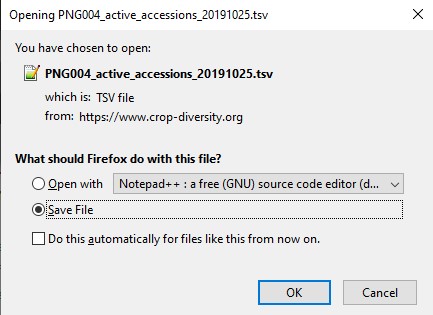
be sure to select Save File and click the ok button.
Once the file is saved, import it into excel.
Edit TSV file
First open excel, select Data menu and then click on From Text/CSV sub menu.
In the dialog box that will appear, select the directory under which you have downloaded the TSV file generated for your collection or for those with no data in MGIS the TSV template (in the example below it is PNG004_active_accessions_20191025.TSV file.

Excel will display a dialog box showing the 200 first records of the file imported:

In the file origin select UTF8, then click on load button to copy the data into excel.

You are done it is now up to you to check and update data of this file, you can also add passport data at the bottom of the imported ones from MGIS. To do so you should follow the MCPD coding for several fields as mentionned here.
Once your edit/add session is done in excel click on save As.. and select Text (Tab delimited) (*.txt) option.
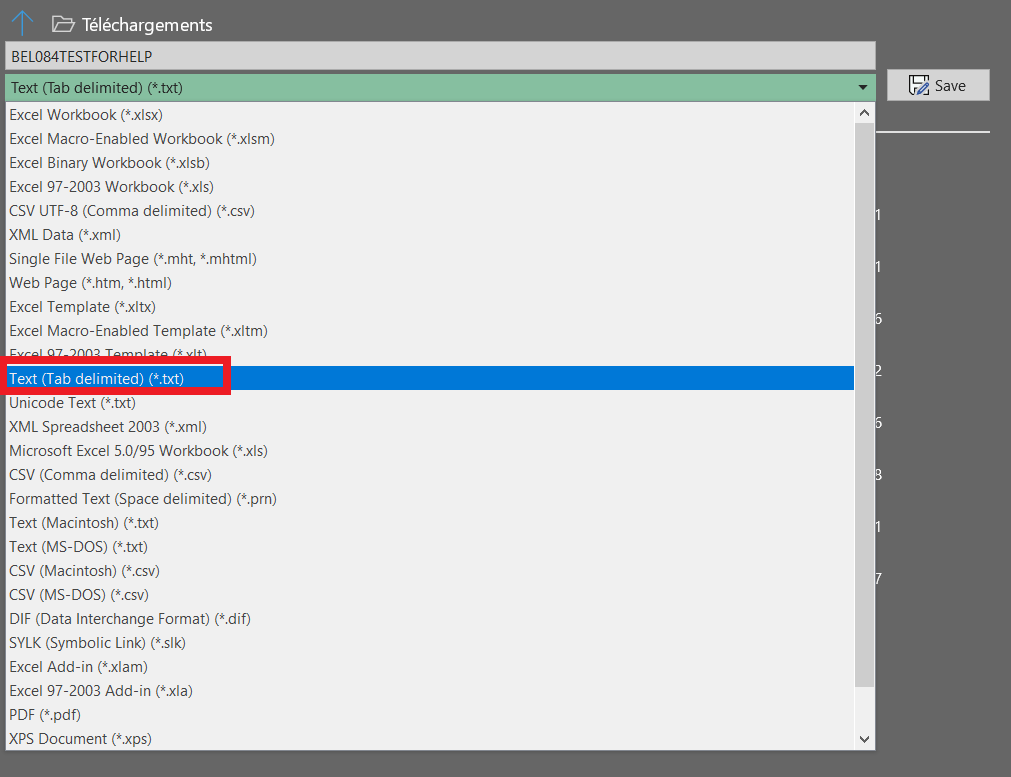
After a click on the Save button you will get a message about the loose of a sheet from your excel workbook just click OK button on the message box below.

Now that you have saved your passport data click on the Update accessions tab to update information related to your collection.
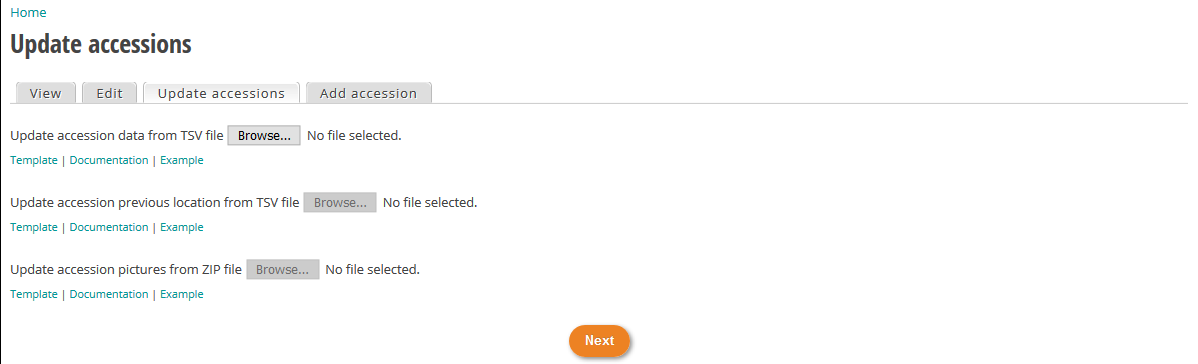
Click on browse button, navigate to the folder where you saved your edited file. The system will check the format of the file. If the file is well formatted, the process for importing data will start and you will see the progress bar as below.

if a problem is detected in the number of columns the process will stop and you will be informed about the error like in this example below. In this case check your text file and correct it according to the error message displayed.

If no problem are encountered on the format of the file the web page will display the following table:

In this example, discrepancies in data are highlighted in red (in the example typo error on classification taxon) and the row containing the error are red color framed. You can move from the right to left and vice versa of the table by typing the arrow pad of your keyboard. Next to first column of the table you will see a green edit hyperlink to edit directly your record online. Once you have fixed the error, click on revalidate changes button.
If you have a lot of error, It is recommended to rework on your TSV file and reload it afterwards.
Edit the accessions update table online
Once your text file have been imported and checked you will get access to a table containing your data.
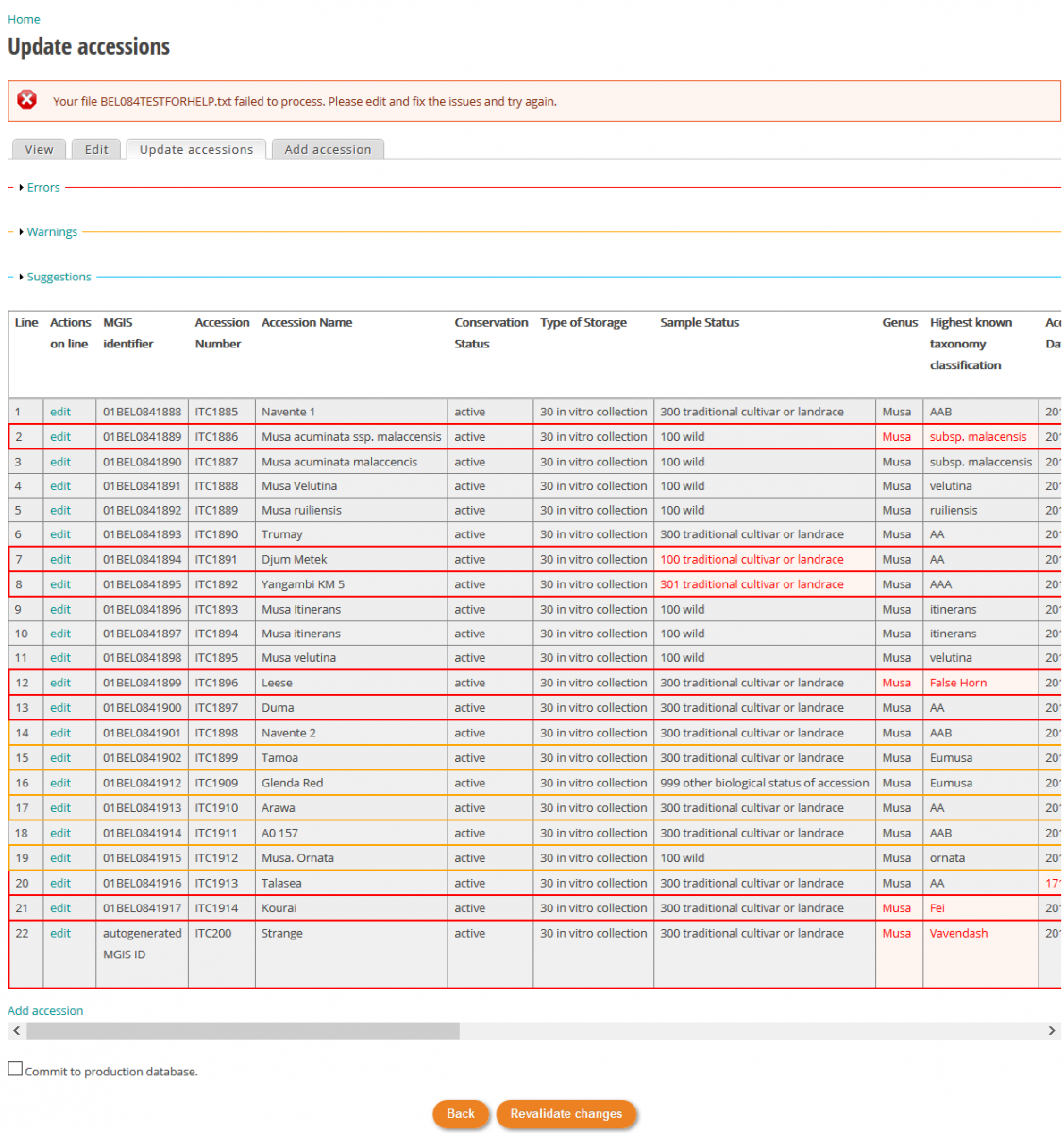
Three levels of error are defined: Error, Warning and Suggestions.
The Error level lists the error that prevent to go further and upload data onto the web site. You should correct those errors in priority. In the example above the line containing error(s) are framed by red borders and the erroneous data is red colored (e.g : on line 2 subsp. Malacencis instead of malaccensis).
It is also possible to see a list of all errors by clicking on the little arrow in front of Error label above the table.

You will then see all the errors by scrolling down the page.

To correct the error directly online, click on edit hyperlink next to the line number.

Then you will be able to edit all fields, for fields hidden on right side of the table you can access to then by clicking on the right arrow pad.
In our example the error is on a misspelling of the subspecies name by deleting the character one by one up to mal syllable you will then get a suggestion of name as you can see in the screenshot below.

In case the passport data already exists in the database the current value for this field is mentioned in grey characters, in our example subsp. Malaccensis.
Once the errors corrected you can continue with the warning and suggestion but it is not mandatory to address those warning and suggestion before to upload data.

As you see on the screenshot above a new button labeled Force update appears at the bottom of the table. Click on it to push your update on the MGIS web site. If everything is ok you will see green text message summarizing your update.
